
Rotate & Flip Image Online Free
Rotate and flip your photos in seconds with our free online image tool. Correct sideways pictures, turn upside-down images, or create mirror effects with simple controls. Preview your changes and download the edited image without needing complicated photo editing software.
Rotate Images | | Download it |100% Secure
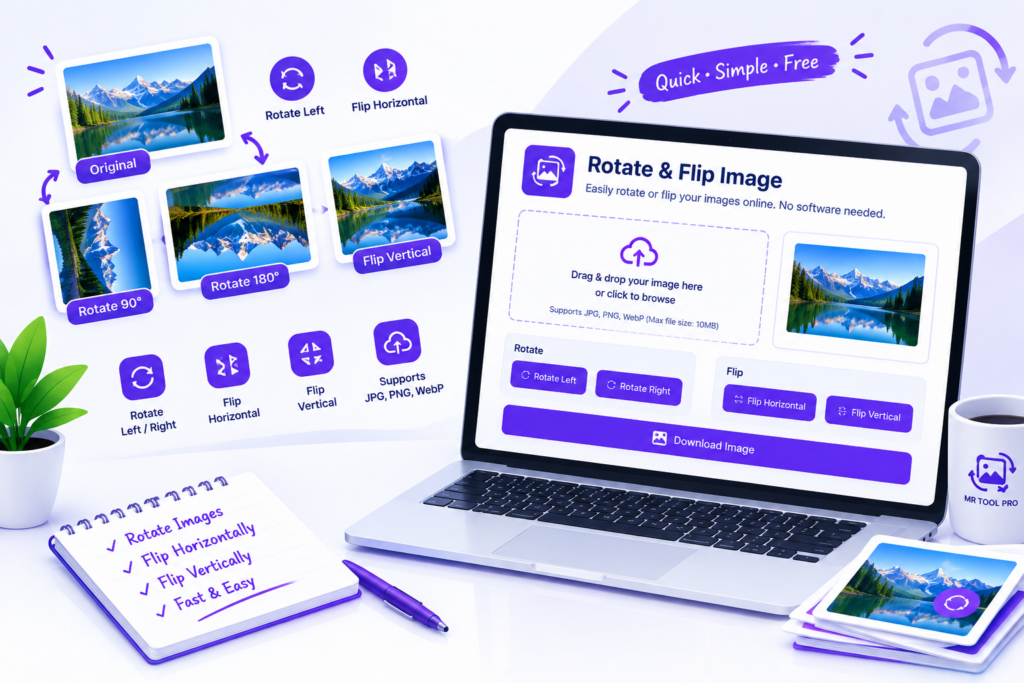
Rotate and Flip Images Online for Free
Sometimes a photo appears sideways, an image is upside down, or a selfie looks reversed. These small problems can make an otherwise good picture difficult to use. The MR Tool Pro Rotate & Flip Image tool helps you correct image orientation with a few simple actions.
Use the rotate function to turn an image clockwise or counterclockwise. Use the flip function to create a mirror effect horizontally or vertically. You can make the changes you need, check the preview, and download the result.
Whether you are preparing a photograph for a website, correcting a scanned document, or adjusting an image for a presentation, this tool provides a straightforward way to change its orientation.
How to Rotate or Flip an Image Online
Step 1: Select Your Image
Open the tool and choose an image from your device using the available file selection option.
Step 2: Choose a Rotation
Use the rotation controls to turn your image in the required direction. If your photo is sideways, rotate it until it appears upright.
Step 3: Flip the Image if Needed
Select the horizontal flip option to reverse the left and right sides. Choose vertical flip to reverse the top and bottom.
Step 4: Check the Preview
Review the result carefully. Make sure the subject, text, and overall orientation appear as expected.
Step 5: Download the Edited Image
Once you are satisfied with the result, click the available download button and save the edited image.
How can I rotate an image online for free?
Open the Rotate & Flip Image tool, select your picture, use the available rotation controls, preview the result, and download the corrected image.
What is the difference between rotating and flipping an image?
Rotation turns an image around its center, while flipping creates a mirror effect. A horizontal flip reverses left and right, whereas a vertical flip reverses top and bottom.
Can I flip an image horizontally?
Yes, if the tool provides a horizontal flip control. This reverses the left and right sides of an image and can help correct mirrored selfies.
Can I flip an image vertically?
Yes, if the vertical flip option is available. It mirrors the image from top to bottom
Does rotating an image change its dimensions?
A 90-degree or 270-degree rotation generally swaps the image’s width and height. A 180-degree rotation normally keeps the same width and height.
Will rotating an image reduce its quality?
Rotation and flipping do not inherently require reducing image quality. However, exporting or re-encoding the image, particularly as JPEG, can affect the final result.
Can I rotate an image on my phone?
You can use a browser-based image tool on a phone if the page and tool support your mobile browser. Select an image from your device, adjust its orientation, and download the result.
Do I need to install software to rotate an image?
No additional editing application is necessary when the online tool works correctly in your browser. Open the tool, select an image, and use its available controls.